Ask the agent
The Chat tab is the agent. It reads your workbook and the documents you attach, then does what you ask: calculate, transform, write, chart, answer a question.
Use it for what a workflow does not do. To pull the same values out of many documents, a workflow costs less and gives the same result every time: see Workflow or agent?
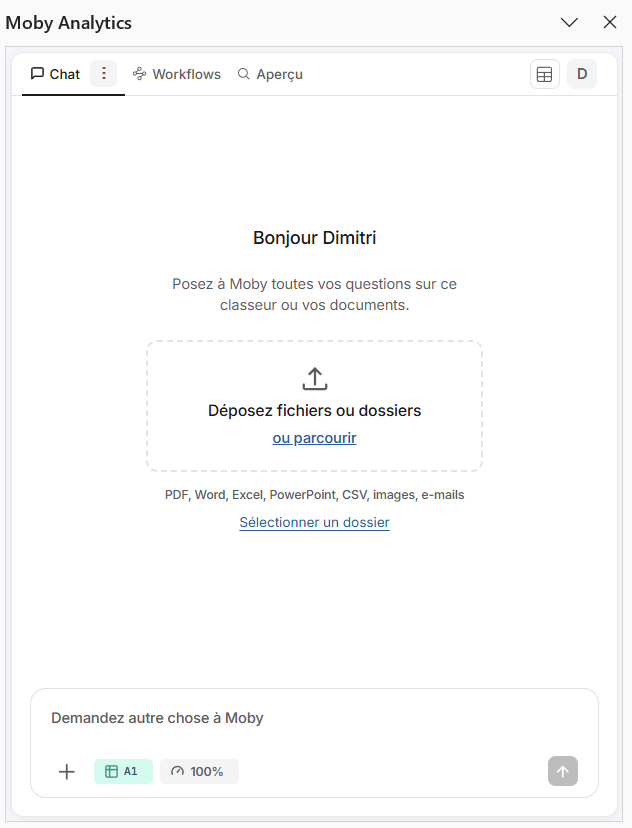
The Chat tab when a workbook opens: drop documents on the pane, or type below.
What the agent can do
| In practice | |
|---|---|
| Read the workbook | Values, formulas and formats of any range. It can search the whole workbook for a text or a number |
| Write | Values and formulas in the cells you name, a table in one go, a new sheet, rows or columns inserted |
| Format | Bold, colours, borders, number formats, alignment, column widths |
| Calculate | Formulas first. For what formulas cannot do, it runs a calculation on your ranges and writes the result back |
| Build | Charts: column, bar, line, pie, area, scatter, combined. PivotTables from a range |
| Read documents | The pages of the documents you attach. An attached Excel file, as data. The tables of an attached PDF, written to the sheet |
How to ask
One instruction holds an objective, the constraints and the result you expect.
| Avoid | Do |
|---|---|
| "Check this file." | "Sum column D of sheet Compta, compare the total with B2 of sheet Rappro and flag the difference." |
| "Clean the data." | "Reformat the dates of column C as DD/MM/YYYY." |
| "Summarise the contract." | "From the attached lease, list the rent, the indexation clause and the notice period, one per row, from A2." |
Type your message and press Enter. Shift and Enter starts a new line. While the agent answers, the send button stops it.
Give it context
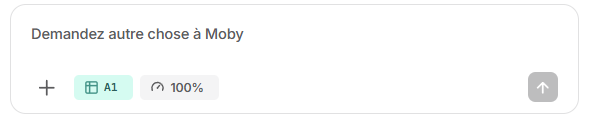
The message box: + attaches documents, the chip shows the selected range, the gauge the room left in the conversation.
| Under the message box | What it is |
|---|---|
| + | Opens the Documents panel. Tick the documents the agent should read, up to 20, then Apply |
| The documents chip | How many documents are attached. Its cross detaches them |
| The range chip | The cells selected in Excel. The agent knows them: you can write "this table" or "the selected column" |
| The gauge | How much room is left in the conversation. When it runs low, start a new task |
What happens when it writes
- It writes straight away. There is no confirmation step.
- Undo depends on your Excel. In Excel for Microsoft 365 kept up to date, and in Excel on the web, Ctrl+Z undoes what the agent wrote, one step at a time: that is version 2509 or later on Windows and 16.100 or later on Mac. An older Excel, or a volume-licence edition such as Excel LTSC, cannot undo a change made by an add-in, and such a change empties the undo history.
- Values read in a document keep their source. When the agent writes a value it found in a document, the cell is linked to the page: click it and the Preview shows where it comes from. Formulas and calculated values have no link.
- It leaves your formulas alone unless you ask it to change them.
- In a test table, it does not fill the accounting side from the documents. And it does not conclude "OK" on a row whose accounting side is empty: a document compared with itself proves nothing.
For a large transformation, or when your Excel cannot undo, ask for the result in a new sheet: your data stays as it was.
Shortcuts
Type / to open the menu.
| Shortcut | Effect |
|---|---|
A workflow: /extract, /ocr, /split, /merge, /workpaper, /review, /compare, /statements, /load, /pack, /sales | Opens the card of the workflow in the Workflows tab |
/help, followed by your question | The agent explains how Moby works |
/support, optionally followed by a description | Opens the support form, with your text already in it |
Tasks and history
A conversation is a task. Start a new one when you change subject: a short conversation keeps the agent on the point.
| You want to | Do this |
|---|---|
| Start again | Menu of the Chat tab, New task, then Confirm. The document selection is cleared |
| Find a past conversation | Menu of the Chat tab, History |
| Delete one of yours | In History, the bin, then confirm |
The history belongs to the workbook. A colleague of your firm who opens the workbook can read its past conversations.
Limits
| Limit | |
|---|---|
| Documents attached | 20 |
| Pages read per message | About 200 |
| An attached Excel file | 500,000 rows or 2,000,000 cells per sheet |
| An attached text or CSV file | 800,000 characters |
Learn more
- Workflows overview: what each workflow does.
- Build a good table: ask the agent to check a table before a run, "check my table before extracting".
- Review and correct: check what the agent wrote, value by value.