Install and sign in
Moby is an Excel add-in. Once installed, it opens as a pane on the right of your workbook.
What you need
| Excel | Excel 2016 or later, on Windows, Mac or the web, with a Microsoft 365 account |
| A Moby account with a licence | Your firm's administrator invites you and assigns the licence. See Invite users and assign licences |
| Network access | An internet connection. If your firm filters outgoing traffic, the domains listed below |
Two features need a recent version of Excel: adding sheets from the workpaper library and receiving the tabs of the financial statements review. When your version is too old for them, Moby says so: update Excel, or use Excel on the web.
Install the add-in
For yourself
- Open the Moby page on Microsoft AppSource and add it to your Microsoft 365 account.
- Launch Excel. Moby appears in the Home tab, or under Add-ins.
For the whole firm
A Microsoft 365 administrator can deploy Moby to every user at once. Users then have nothing to install: the Moby button appears in their Excel.
- Sign in to the Microsoft 365 admin center with an administrator account. Open Settings, then Integrated apps.
- Click Upload custom apps and choose the app type Office Add-in.
- Provide the Moby manifest file. Ask us for it: contact@mobyanalytics.com.
- Choose who gets the add-in: the whole organisation, or specific users and groups. For a first test, yourself only.
- Accept the permission the add-in asks for, which is to read and write the open workbook, and finish the deployment.
| Good to know | |
|---|---|
| Delay | A new deployment can take up to 24 hours to reach every user |
| Updates | Moby updates itself. You are asked to act only if the manifest changes, and we tell you when it does |
| The button is missing after 24 hours | See Troubleshooting |
Domains to allow
If your firm filters outgoing traffic, allow these domains on port 443 (HTTPS).
| Domain | Used for |
|---|---|
app.mobyanalytics.com | The Moby service and the web portal |
excel-plugin.mobyanalytics.com | The add-in itself |
login.mobyanalytics.com, cdn.auth0.com | The sign-in page, which opens in your browser |
*.webpubsub.azure.com | Live updates, for example between Excel and a detached preview window |
appsforoffice.microsoft.com | Microsoft's library for Office add-ins |
fonts.googleapis.com, fonts.gstatic.com | Fonts |
docs.mobyanalytics.com, www.mobyanalytics.com | This documentation, and our website, where Request access leads |
Open Moby and sign in
- In Excel, on the Home tab, click Moby. The pane opens on the right.
- Click Sign in. Your browser opens: sign in with your Moby account. The first time, you may be asked to verify your e-mail address and to accept the terms of use.
- When the page says "Successfully signed in", close it and return to Excel.
| Good to know | |
|---|---|
| Time limit | You have five minutes to finish a sign-in started from Excel |
| Session | You stay signed in for 24 hours |
| One computer at a time | Signing in on a second computer signs you out of the first |
| No account yet | Click Request access on the welcome screen |
If you have no licence
The sign-in is refused with "No active license. Contact your administrator to get access to the Excel plugin." Ask your firm's administrator to assign you a licence, then sign in again.
Open a workbook without signing in
Someone who has the add-in but no Moby account can still open a workbook built with Moby. The pane then shows the Preview only: the source document of a cell, with the value highlighted. Chat, workflows, uploads and corrections need a sign-in.
This is the Consultation mode of the workbook. A signed-in user can switch it off for a workbook from the Workbook menu: only signed-in users of your firm can then view its documents.
Language and accounting standard
Both are set from the account menu: click your initial, top right of the pane.
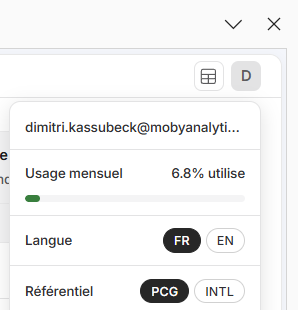
Under your initial: Language and Accounting.
| Setting | Choices | Effect |
|---|---|---|
| Language | FR, EN | The language of the add-in and of the agent's answers. It is saved on your profile and follows you on every computer |
| Accounting | PCG (French chart of accounts), INTL (International) | The version of the workflows that read a ledger or financial statements: Review financial statements and the data analysis workflows |
Next
Your first dive: four exercises on sample documents, twenty minutes.