Map of the add-in
The Moby pane has three tabs, a Workbook menu and an account menu. This page says what each one is for.

Left to right: the Chat, Workflows and Preview tabs, the menu of the active tab, the Workbook menu and the account menu.
The top bar
| Area | What it is for | Its menu (⋮ on the active tab) |
|---|---|---|
| Chat tab | Ask the agent to calculate, transform, write or answer a question on your documents. See Ask the agent | New task, History |
| Workflows tab | Launch a workflow and follow its run. See Workflows overview | History: the workflows already run on this workbook |
| Preview tab | See the source page of a value, correct it, annotate the document. See Review and correct | Detach preview window: the preview opens in a browser window, for a second screen |
| Workbook menu | The documents and the settings of this workbook | See below |
| Account menu (your initial) | Your usage, your settings, help | See below |
The Workbook menu
| Item | What it does |
|---|---|
| Documents | Opens the Documents panel, with the number of documents of the workbook |
| Client & project | Files the workbook under a client and a project, to keep your firm's workbooks organised. It changes neither the documents nor who can access them |
| Generate audit trail | Writes a sheet listing every value with its source. See Document the work |
| Consultation mode | When on, anyone with the file can view its documents in the Preview without signing in. Switch it off to reserve them to signed-in users of your firm |
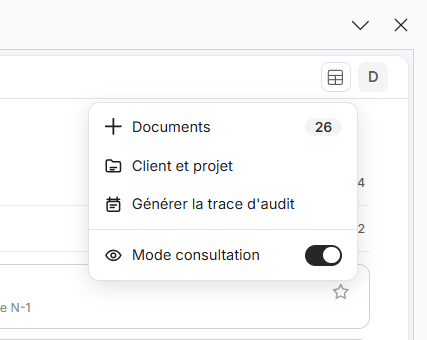
The Workbook menu, from the grid button at the top right of the pane.
The account menu
| Item | What it shows or does |
|---|---|
| Usage | Monthly usage or Annual usage: the share of your budget already used |
| Language | FR or EN, for the add-in and the agent's answers |
| Accounting | PCG or INTL: the accounting standard used by the workflows that read a ledger or financial statements |
| Documentation | Opens this documentation in your browser, in the language of the add-in |
| Support | Opens the support form. It sends your message with its context, and your workbook if you leave the box ticked |
| Sign out | Ends your session on this computer |
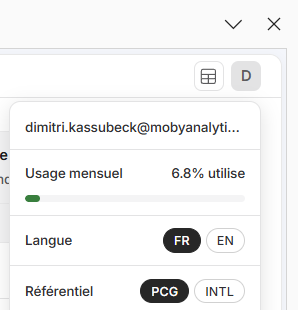
The top of the account menu: your usage, the language and the accounting standard.
The Documents panel
Every document of a workbook lives in the same panel. It opens from Workbook, then Documents; from the + button of the chat; and from the document tile of a workflow card.
| You want to | Do this |
|---|---|
| Add documents | Drop files or folders anywhere on the pane: the upload starts at once. Or click Upload, choose the files, then Submit |
| Choose the documents of a run | Tick them, or tick a folder to take all it holds. Shift and click selects a range. Then Apply |
| Sort them into folders | New folder, then drag documents onto it |
| Rename | The pencil on a document or a folder. The file extension cannot be changed |
| Download | One document downloads as a file. Several download as a ZIP. A document linked to cells downloads as a PDF with a box around each value, unless it is a spreadsheet |
| Remove | Remove takes the selected documents out of this workbook |
| Set a document aside | Exclude document removes its links from every cell and marks it Excluded |
See Supported formats for what you can add and Limits for the sizes.
Favorites
The Workflows tab groups its tiles as Audit tests, Financials and Data analysis. Click the star of a tile to add it to Favorites, up to seven. Three are starred to begin with: Extract targeted data, OCR table and Review financial statements.
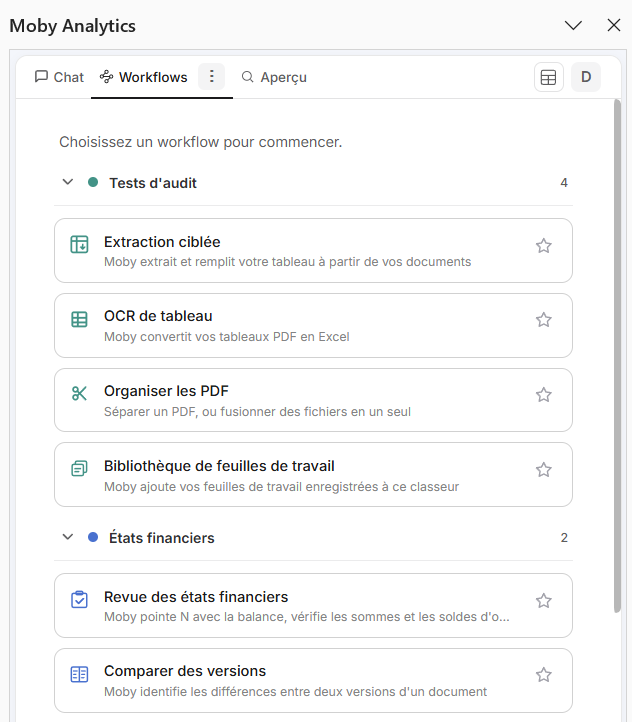
The tiles of the Workflows tab, by family. The star of a tile pins it to Favorites.