Review and correct
Every value Moby reads in a document stays linked to the place it came from. Reviewing is a click: select a cell, and the Preview tab shows the page with the value highlighted. From there you correct, add or remove a source, and annotate the document.
See the source of a value
- Click a cell filled by Moby.
- The Preview tab shows the page of the document. The value is framed on the page.
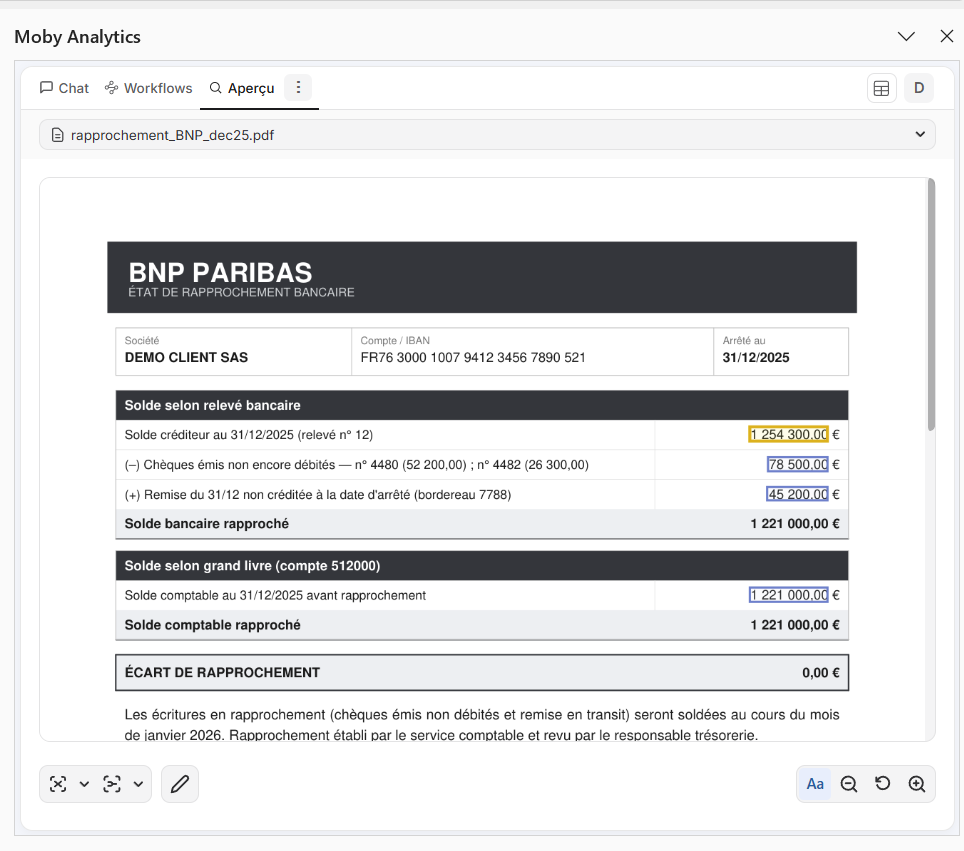
The Preview on the source statement: the value of the selected cell is framed in yellow, the other linked values in blue.
| In the Preview | What it does |
|---|---|
| The name of the document and Source 1/2 | The document shown, and how many sources the cell has. The arrows go from one source to the next. Click the name to list them |
| Break link with this document | Removes the link between the selected cells and the document shown |
| The mode button, next to it | Links a value by hand: see Correct a value by hand |
| The pencil, Annotate the document | Adds a tick or a note on the page |
| Show searchable OCR text | Replaces the page with the text Moby read, to search it or to check it. Show PDF preview brings the page back |
| Zoom out, the rotation button, Zoom in | From 50% to 400%, and a quarter turn at a time. Ctrl and the mouse wheel zoom too |

The toolbar under the page: break link, the mode button and its menu, annotate, OCR text, zoom and rotation.
The pages scroll one after the other. The indicator gives the page you are on and the number of pages.
When a cell has several sources
A cell can come from several documents: two delivery notes for one order, two statements for one balance. The texts are then joined with "; " and the numbers are added in a formula. The Preview shows Source 1/2.
| You want to | Do this |
|---|---|
| Check each source | Use the arrows, or pick a source in the list |
| Remove a source that does not belong | The bin next to it in the list, or Break link with this document |
| Add a source | Add a source, at the bottom of the list, then pick the document |
| Look at a document without linking it | View other documents |
Removing a source does not change the value of the cell. Correct the value afterwards: see below.
Correct a value by hand
- Select the cell in Excel. To replace its value, clear the cell first.
- In the Preview, show the right document: pick it with Add a source or View other documents.
- Open the menu of the mode button and choose a mode.
- Draw a box around the value on the page.
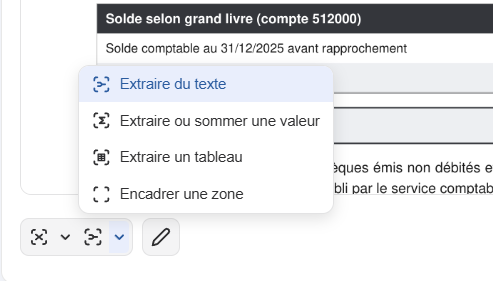
The menu of the mode button: the four ways to write what you box.
| Mode | What it writes in the cell |
|---|---|
| Extract text | The text under the box. If the cell already holds a value, the text is added after it, behind "; " |
| Extract or sum a value | The number under the box, as a formula. If the cell already holds a number, the new one is added to it |
| Extract a table | The table under the box, from the selected cell. Each cell is linked to its place on the page. Data already there moves to the right |
| Draw a box | Nothing: the cell keeps its value and gains a link to the box |
Extract text is the mode selected when you open the add-in. Use Draw a box when you typed the value yourself and only want to show where it comes from.
Break a link
Select one or several cells, then open the menu next to Break link with this document.
| Choice | What it removes |
|---|---|
| Break this link | The link between the selected cells and the document shown |
| Break all links in selection | Every link of the selected cells, whatever the document |
The cells keep their values. To remove every link to a document at once, open the Documents panel: the cross on its Grounded badge does it, and Exclude document also marks the document Excluded.
Annotate a document
- Click the pencil, Annotate the document.
- Choose Tick or Text, and one of the four colours.
- Click on the page. For a text, type it and press Enter.
- Press Esc to finish.
To delete an annotation, hover over it and click its cross. Annotations are kept in the workbook: whoever opens it sees them in the Preview.
Work on two screens
Open the menu of the Preview tab and click Detach preview window. The preview opens in a browser window that you can move to a second screen. It follows the cell you select in Excel. Click Reattach in the pane to bring it back.
Good habits
- Correct once the run is finished. A value corrected during a run is replaced by the final write.
- Check every cell that shows Source 1/2 or more: one source too many changes the value.
- When a value looks odd, read what Moby read with Show searchable OCR text. A zero read as the letter O is a scan problem, not a question problem.
- Do not sort a table after Moby filled it. The links to the sources do not follow a sort: sort a copy of the table instead. If you sorted by mistake, undo the sort at once with Ctrl+Z.
Learn more
- Document the work: the audit trail and the marked PDFs.
- Troubleshooting: a value is wrong, a link is missing, a row has the wrong document.