Document the work
A workbook filled with Moby carries its own evidence: each value is linked to its document, and the links travel with the file. This page shows how to turn that into a working paper someone else can review.
The workbook is the audit trail
| What a reviewer needs | Where it is |
|---|---|
| The source of a value | Click the cell: the Preview shows the page, with the value framed |
| Every document of the engagement | The Documents panel of the workbook |
| The ticks and notes you left | On the pages, in the Preview |
A reviewer with a Moby account sees all of it by opening the workbook. A reviewer without an account can still click through the sources, in consultation mode, as long as they have the add-in: the Preview only, without the chat and the workflows. See Install and sign in.
To reserve the documents of a workbook to signed-in members of your firm, switch Consultation mode off in the Workbook menu.
List every value with its source
- Open the Workbook menu and click Generate audit trail.
- Moby adds a sheet named
Audit CrossRef.
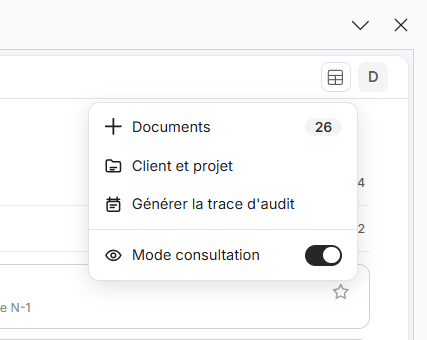
Generate audit trail, in the Workbook menu.
| Column | What it holds |
|---|---|
| Target Sheet | The sheet of the cell |
| Target Cell | Its address |
| Cell Value | Its value when the list was generated |
| Document Name | The document it is linked to |
| Generated At | The date and time of the list |
The list covers every linked cell of every sheet, one row per cell and per source: a cell with two sources takes two rows. The header carries a filter. The column titles are in English in both languages.
Generating the list again adds a new sheet, Audit CrossRef (2), and leaves the first one as it was. Generate it at the end of the work, once the corrections are made.
Download the documents
In the Documents panel, tick the documents and click Download. One document downloads as a file, several as a ZIP.
| The document | What you get |
|---|---|
| Is linked to cells | A PDF with a box around each linked value, labelled with the address of its cell. A spreadsheet or a text file comes as it is, without boxes |
| Went through Review financial statements | The marked PDF: the marks of the review, with your own ticks and notes |
| Is linked to nothing | The file as you added it |
Keep the sheet for next time
A table that worked is worth keeping. Save its tabs as a workpaper, for you or for the whole firm, and start the next engagement from it: see Workpaper library.
File the workbook
Open the Workbook menu and click Client & project. Pick the client and the project, then Save. The filing keeps the workbooks of the firm organised. It changes neither the documents nor who can access them.
Clients and projects are created by an administrator or a manager, on the web portal: see Invite users and assign licences.
Find what was done
| Where | |
|---|---|
| The workflows run on this workbook | Menu of the Workflows tab, History |
| The conversations with the agent | Menu of the Chat tab, History |
Both histories belong to the workbook.
Learn more
- Review and correct: sources, corrections and annotations.
- Build a good table: every key with its twin, so that the ledger and the document sit side by side.