Workpaper library
/workpaper adds ready-made sheets to your workbook: the ones your firm saved and the ones Moby provides. It also saves your own sheets, so that the next engagement starts from a table that already works.
| What Moby does | Inserts the tabs of a saved workpaper at the end of your workbook, with their values, formulas and formatting |
| Use it when | You want to start from a sheet already built for the test, instead of an empty one |
| You need | Nothing. A workpaper holds sheets only: your documents stay in the workbook they were added to |
Add a workpaper to your workbook
- In the Workflows tab, click Workpaper library, or type
/workpaperin the chat. - Step 1/2. Pick a workpaper. Search by name, or filter with the category chips.
- Click Next. Step 2/2 lists the tabs that will be added.
- Click the Add button, which shows the number of tabs.
- When the card says Workpaper added, click the link to go to the first new tab.
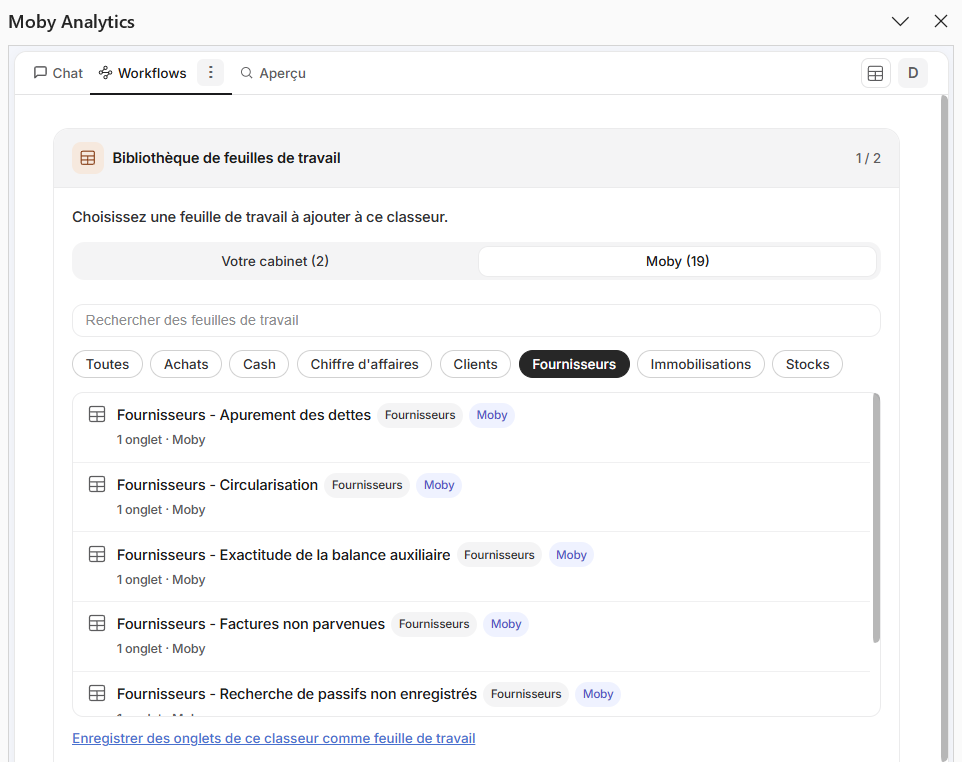
Step 1/2 of the library: the Your firm and Moby tabs, the search box, the category chips and the list of workpapers.
Two libraries
| Tab of the card | What it holds |
|---|---|
| Your firm | The workpapers saved by your firm, and your own. Yours carry the tag Personal when only you can see them |
| Moby | Ready-made sheets by audit cycle: bank reconciliation, receivables, payables, fixed assets, inventory, revenue, purchases. And the tutorial of Your first dive |
The Moby tab shows the workpapers written in the language of your add-in. Switch the language from the account menu to see the others.
Good to know
- A workpaper is added whole. You cannot leave out one of its tabs: delete the tab afterwards if you do not need it.
- A tab whose name is already taken in your workbook is renamed, "Name (2)".
- A workpaper keeps its earlier versions. An administrator can choose which Version to add; everyone else gets the latest.
- The bin icon on a workpaper of yours deletes it, with all its versions.
Save your own sheets
- Open the library card and click Save tabs from this workbook as a workpaper, under the list.
- Step 1/2. Tick the tabs to save, then Next.
- Step 2/2. Give a Name and a Category.
- Click Save workpaper. When the card says Workpaper saved, it is in the library.
| Field | What to put |
|---|---|
| Name | A new name creates a workpaper. Picking an existing name from the list updates that workpaper |
| Category | One category per workpaper. Pick an existing one, Other, or + New category |
| Save for | Shown to administrators only. Whole firm: everyone in the firm can add it. Just me: only you can |
Without the Save for choice, a workpaper is saved for you alone. Only an administrator can save, replace or delete a workpaper of the whole firm.
What is saved
| Saved | Not saved |
|---|---|
| Values, formulas and formatting of the tabs you ticked | Macros |
| The documents of the workbook | |
The tabs you did not tick: a formula that points to one of them shows #REF! or an old value |
A workpaper is saved with its values. To reuse a table on another engagement, save it before the run, or clear the extracted values first.
Watch out
- In Excel on the web, a workpaper that holds charts, PivotTables, comments or slicers cannot be added, and neither can a very large one. Open the workbook in the Excel desktop app.
- An older Excel cannot insert tabs. Moby says so: update Excel, or use Excel on the web.
- If Moby cannot rename a tab that collides, it names the tabs concerned. Rename or remove them, then add the workpaper again.
Limits
| Limit | |
|---|---|
| Size of the workbook you save from | 150 MB |
| Tabs per workpaper | 100 |
| Categories per workpaper | 1 |
| Name | 120 characters |
| Category | 40 characters |
Learn more
- Build a good table: the rules behind a sheet that
/extractreads well. - Roles: who can save for the whole firm.